

Are you searching for how to delete Instagram account permanently? You are on the right page.
Sneha was a college student from Bangalore. She opened Instagram for just 5 minutes between classes, but those 5 minutes turned into 3 – 4 hours a day. Her sleep suffered. Her focus disappeared.
She felt anxious and restless every time she closed the app. One night, she decided, enough.
She deleted her Instagram account that same night. 2 months later, she said: “Deleting Instagram gave me my focus back.” If you also feel distracted, anxious, or like Instagram is stealing your time, you are not alone.
Millions of people delete their Instagram accounts every year for the same reason. In this guide, you will learn exactly how to delete your Instagram account permanently on Android, iPhone, iPad, PC, and Mac, and even without a password or email. Every step is simple, clear, and easy to follow. Let’s start.
Article Summary
✔ Updated for 2026
✔ Tested on Latest Instagram App
✔ Works on Android, iPhone & PC
✔ Beginner Friendly
✔ Step-by-Step Instructions
✔ Screenshots Included
Quick Answer
On Any Device: Instagram App → Profile Icon → Menu (☰) → Settings and Activity → Accounts Center → Manage Accounts → Manage Accounts → Deactivation or Deletion → Delete Account → Enter Password → Confirm. These are the quick steps. For full, detailed instructions on how to delete an Instagram account on Android, iPhone, tablet, or computer, and without a password or email, continue reading below.
Table of Contents
Things to Know Before Deleting Your Instagram Account
Before permanently deleting your Instagram account, here are a few important things to remember:
- Download your Instagram data if you want to keep your photos, videos, and messages.
- Deleting your account is different from temporarily deactivating it.
- You can recover your account only within the first 30 days.
- Your Threads account is not deleted automatically.
- If you log in again during the 30 days, Instagram cancels your deletion request automatically.
Why do people delete Instagram accounts?
Here are the real reasons people search for how to delete an Instagram account permanently:
✅ Wasting 2 – 4 hours daily on endless scrolling
✅ Comparison and anxiety from other people’s posts
✅ Too many notifications are disturbing work or study
✅ Worried about personal data and location privacy
✅ Want to focus more on studies, career, or real life
✅ Account got hacked or misused by someone else
✅ Have multiple old unused Instagram accounts to clean up
✅ Mental stress and social media addiction
✅ Simply stopped using Instagram and don’t need it anymore.
Deactivate vs Delete vs Uninstall Instagram Account – What Is the Difference?
| Feature | Deactivate | Delete | Uninstall |
|---|---|---|---|
| Is it temporary? | Yes | No | Yes |
| Can you recover it? | Yes, anytime by logging in | No, never after 30 days | Yes — account is untouched, just reinstall |
| Are photos/reels deleted? | Hidden, not deleted | Deleted forever | Not affected at all |
| Are followers removed? | Hidden temporarily | Removed forever | Not affected at all |
| Can you log in again? | Yes, instantly reactivates | No | Yes, log in normally after reinstalling |
| Does your profile stay visible to others? | No, hidden while deactivated | No, removed permanently | Yes, fully visible as normal |
| Time to full effect | Immediate, no fixed time limit | Automatic after 30 days | Immediate, but account is unaffected |
| What it actually removes | Nothing — account and data stay intact | Everything — account and all data | Only the app from your device |
Real Example: Sneha, a student from Bangalore, was spending 4 hours daily on Instagram. After deleting it, she said, “I started sleeping on time. My focus improved. Best decision ever.” You don’t need a big reason. If Instagram is not helping you, delete it today.
How to Delete Instagram Account on Phone?
If you are trying to delete your Instagram account on different devices like Android, iPhone, and Tablet, then follow these steps:
How to Delete Instagram Account on Android?
This is the most searched method for how to delete an Instagram account on Android. Steps:
- Go to instagram.com
- Log in with your username and password.
- Tap your Profile photo at the bottom right.
- Click on the Menu icon (☰) at the top right.
- Go to Settings and Activity.
- Open Accounts Center.
- Tap Manage Accounts.
- Open Manage Accounts.
- Tap Deactivation or Deletion.
- Select Delete Account (not Deactivate).
- Choose a reason, enter your password, and tap Confirm.
 Done! Your account is now scheduled for permanent deletion after 30 days.
How to Delete Instagram Account on iPhone?

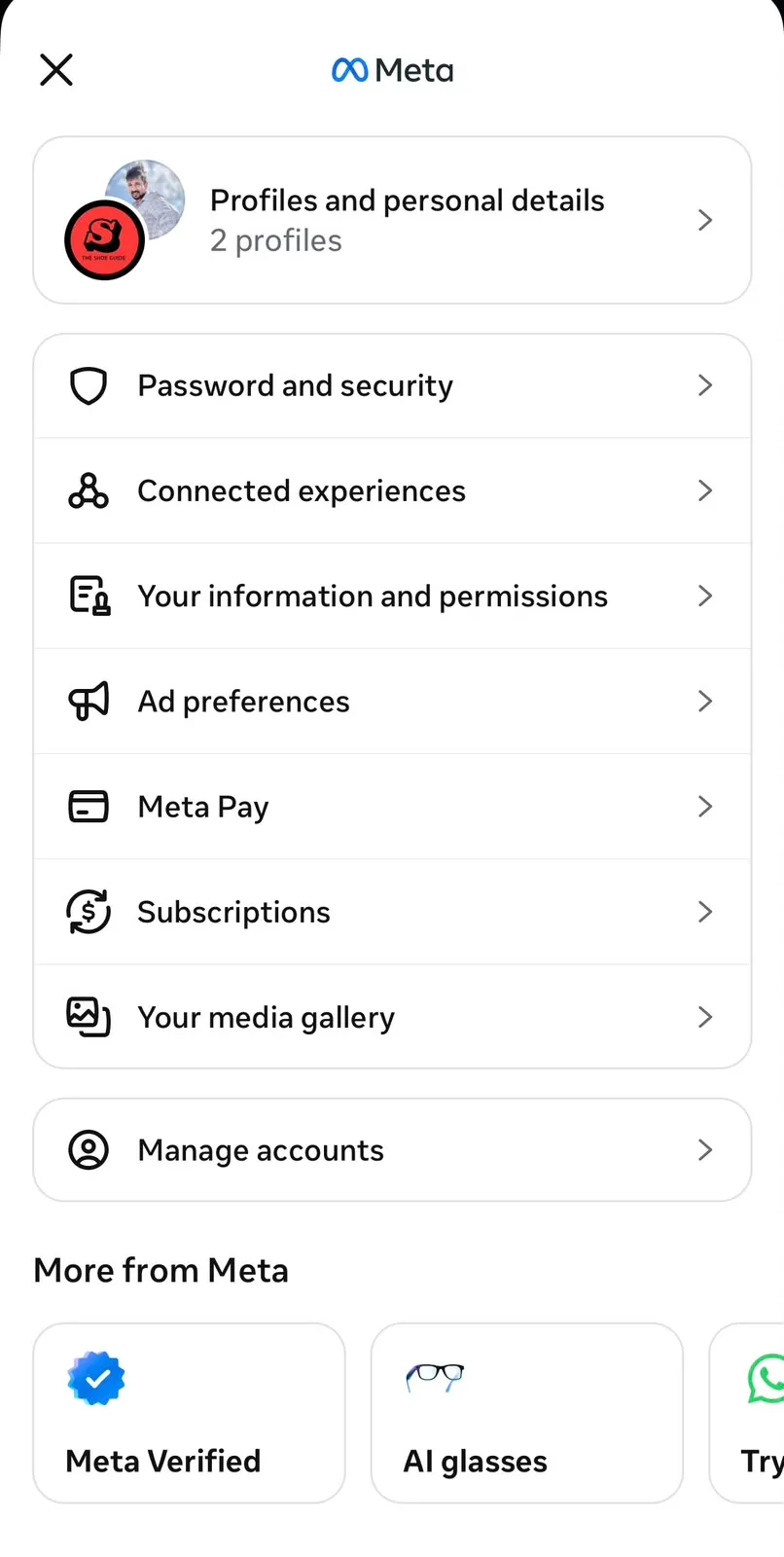
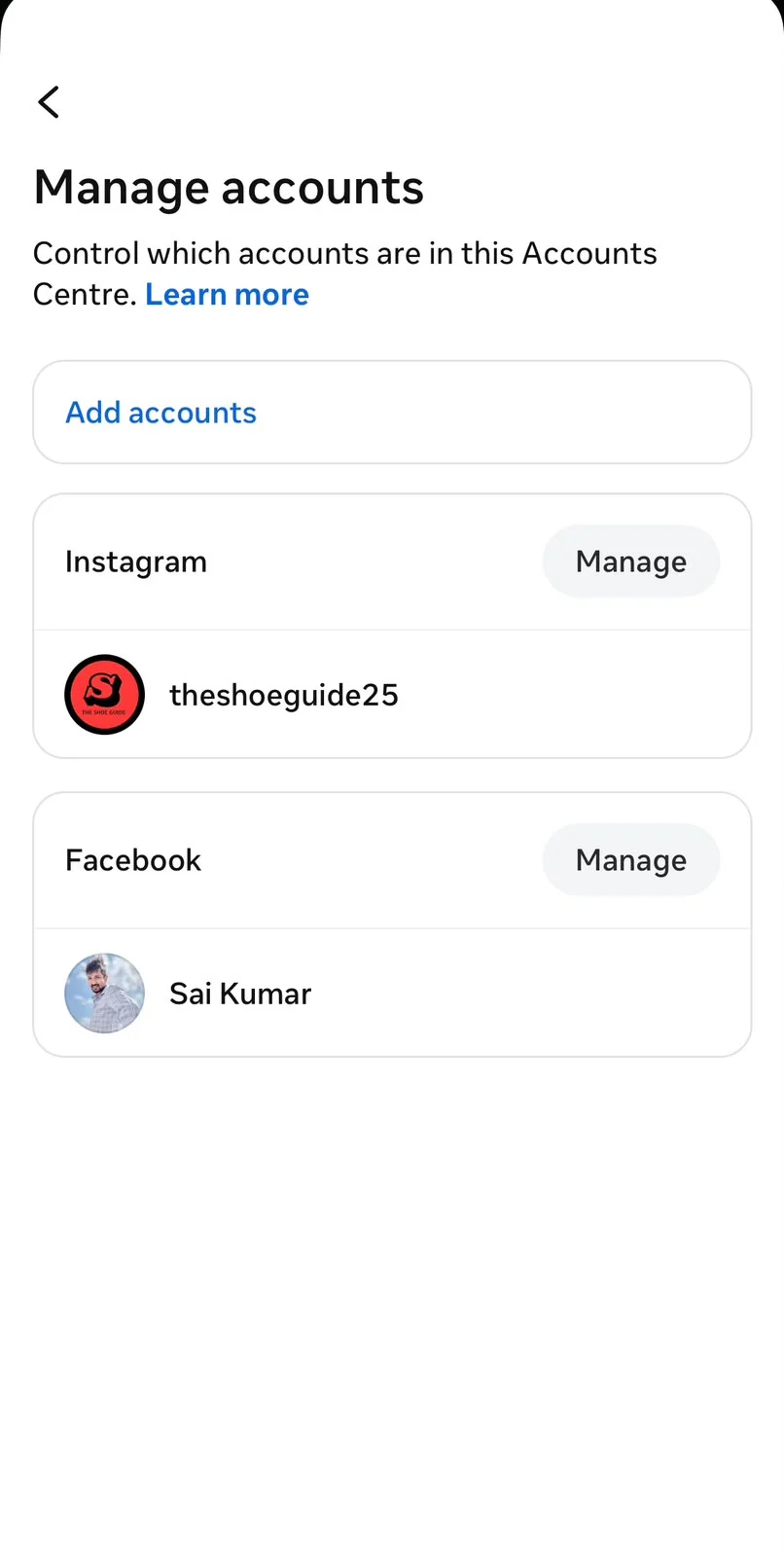
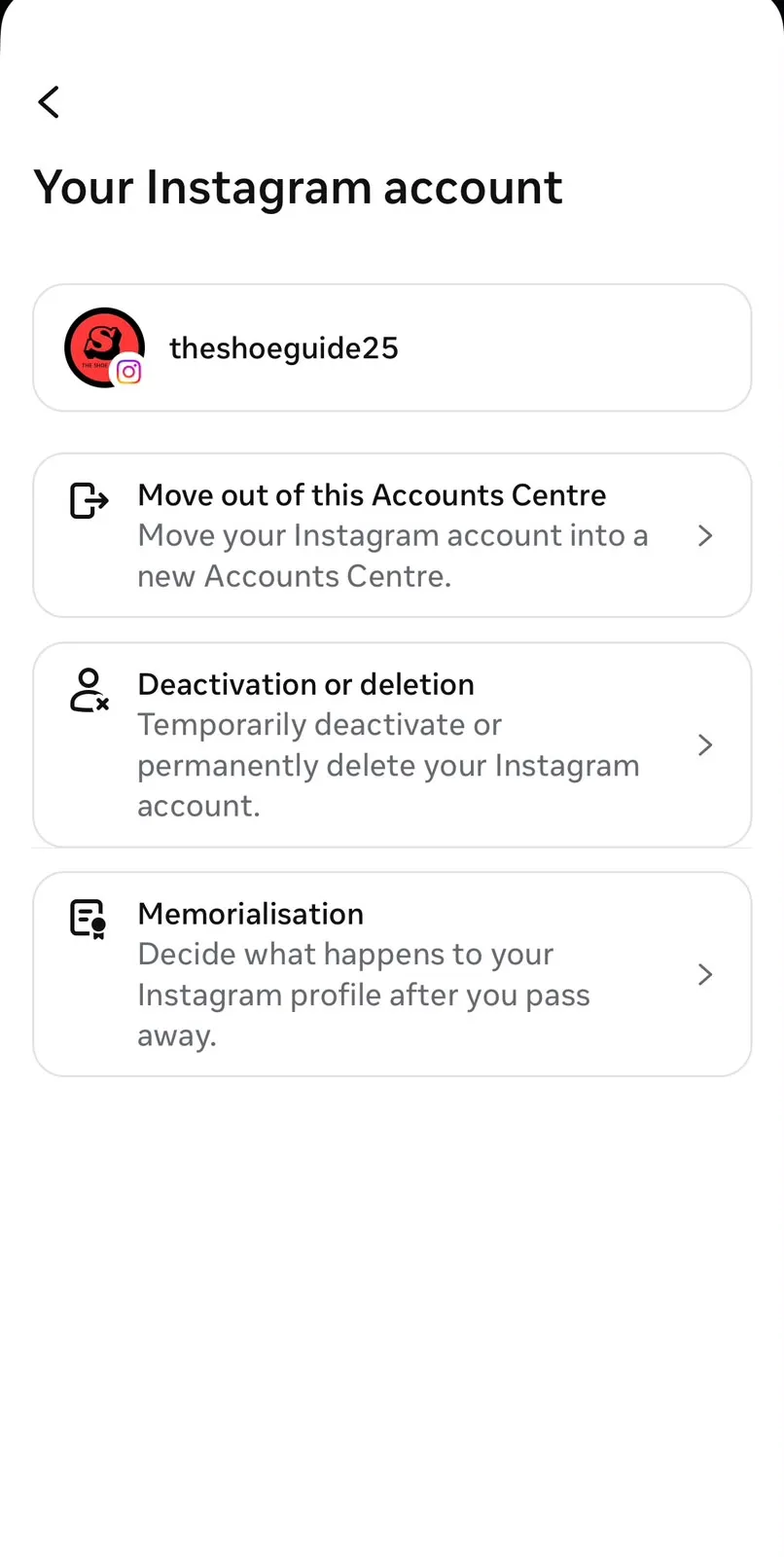
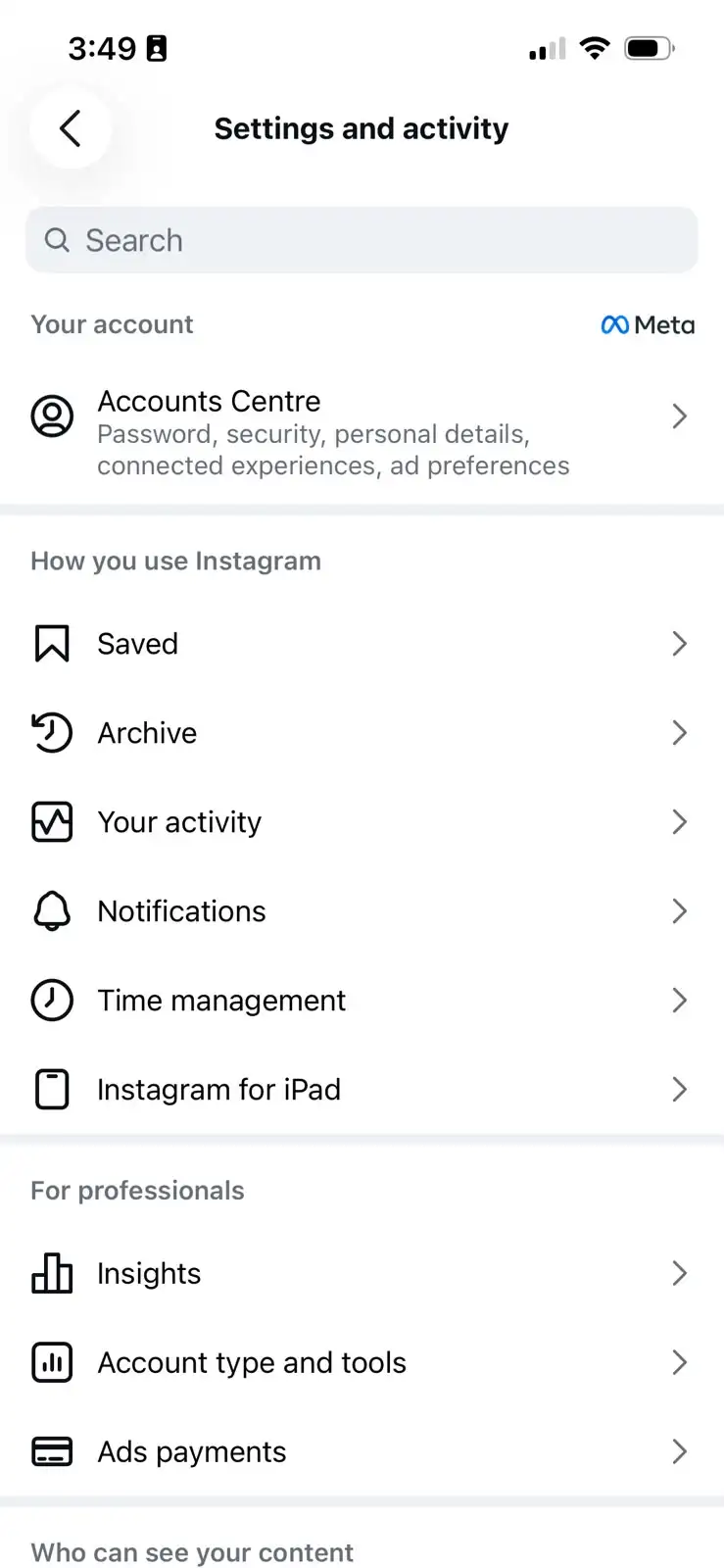
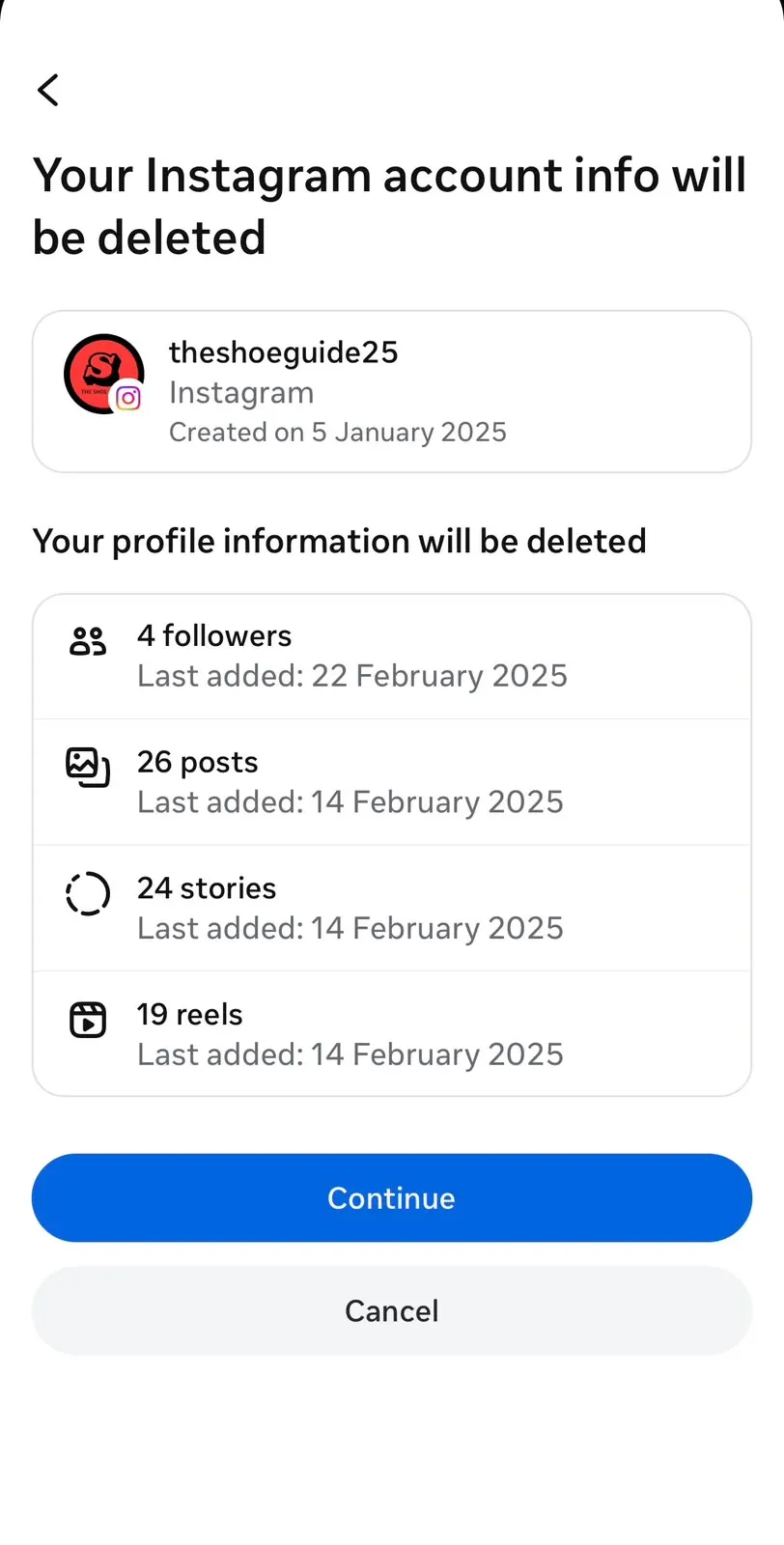
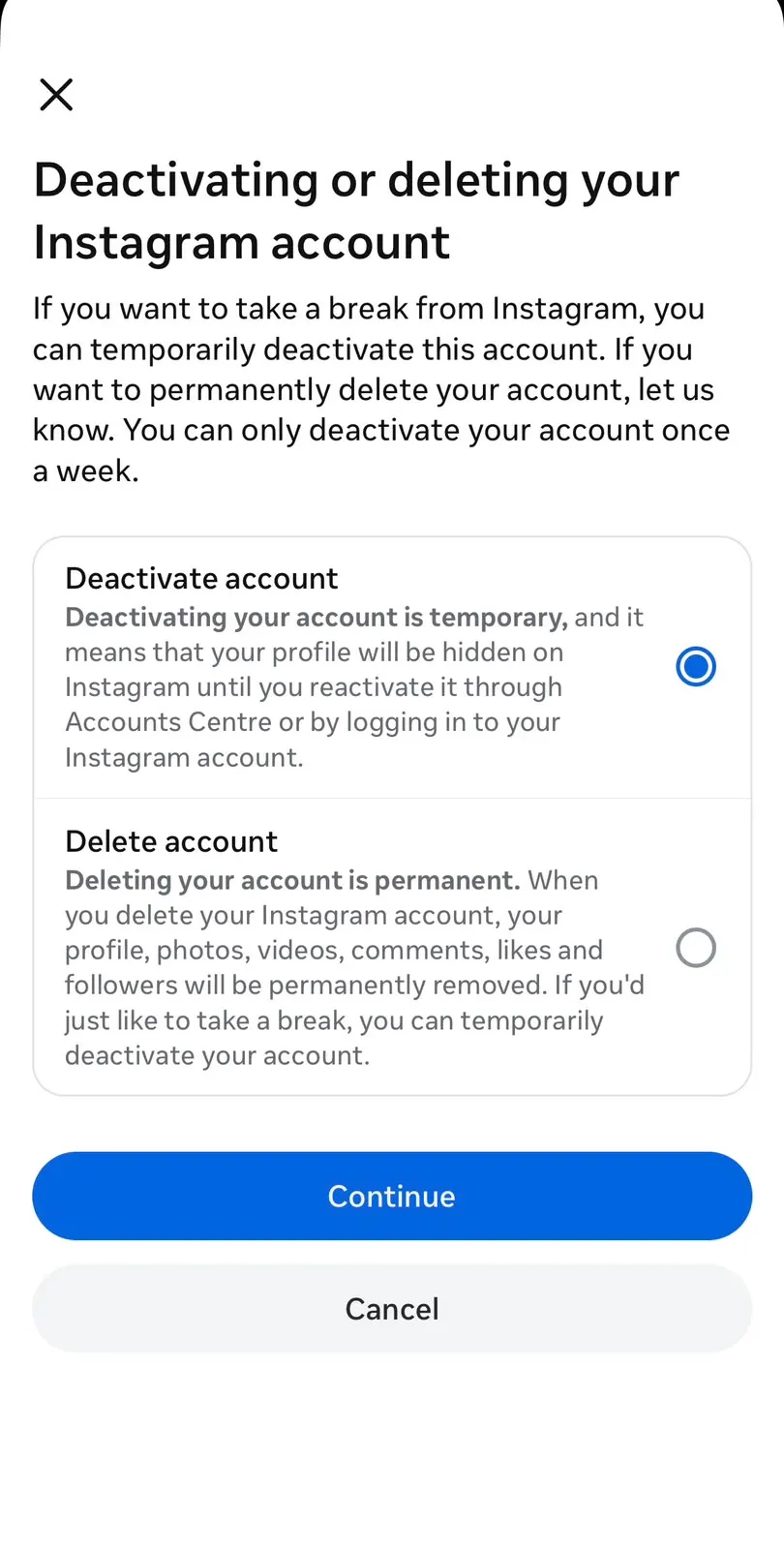
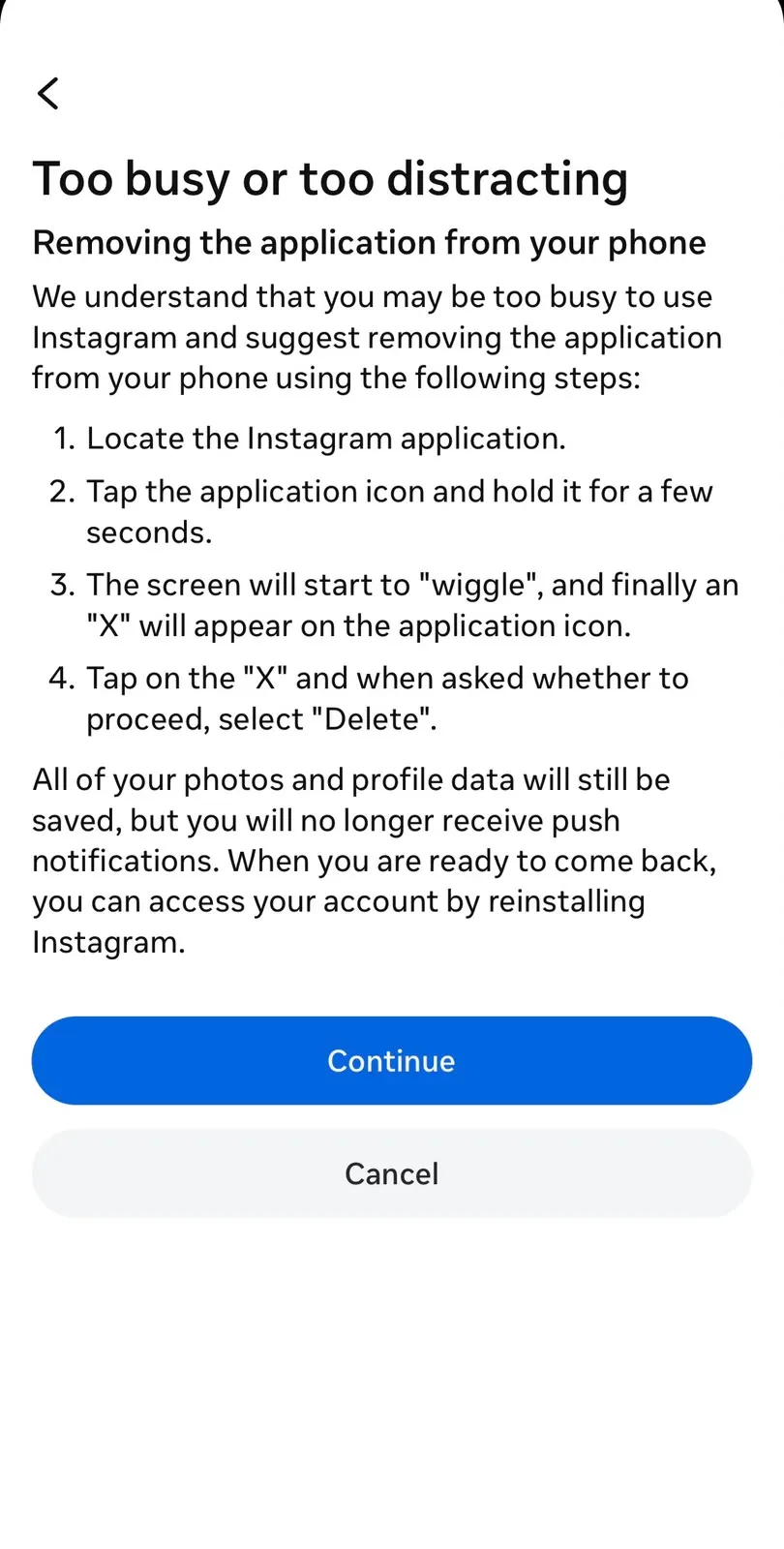
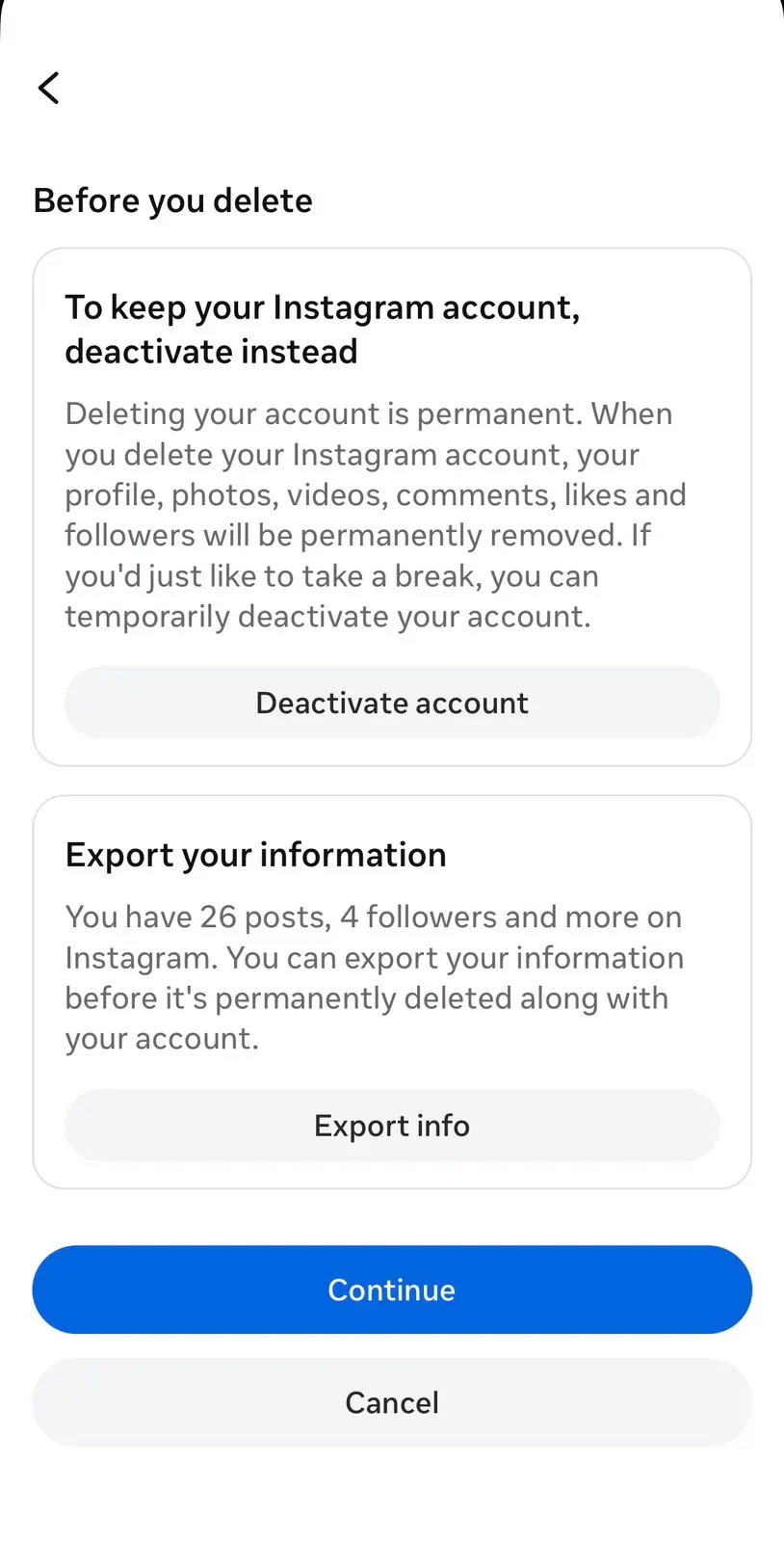
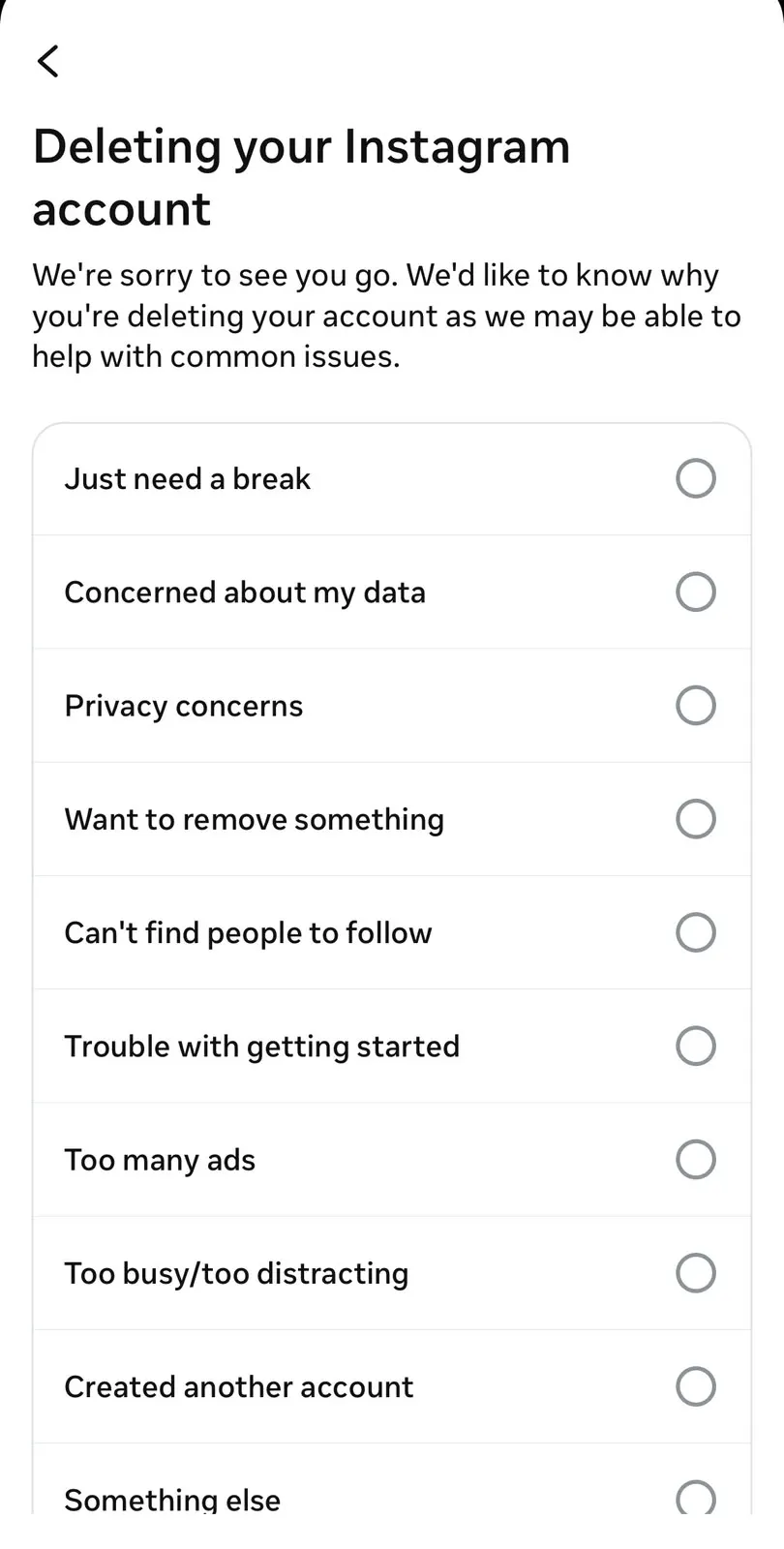
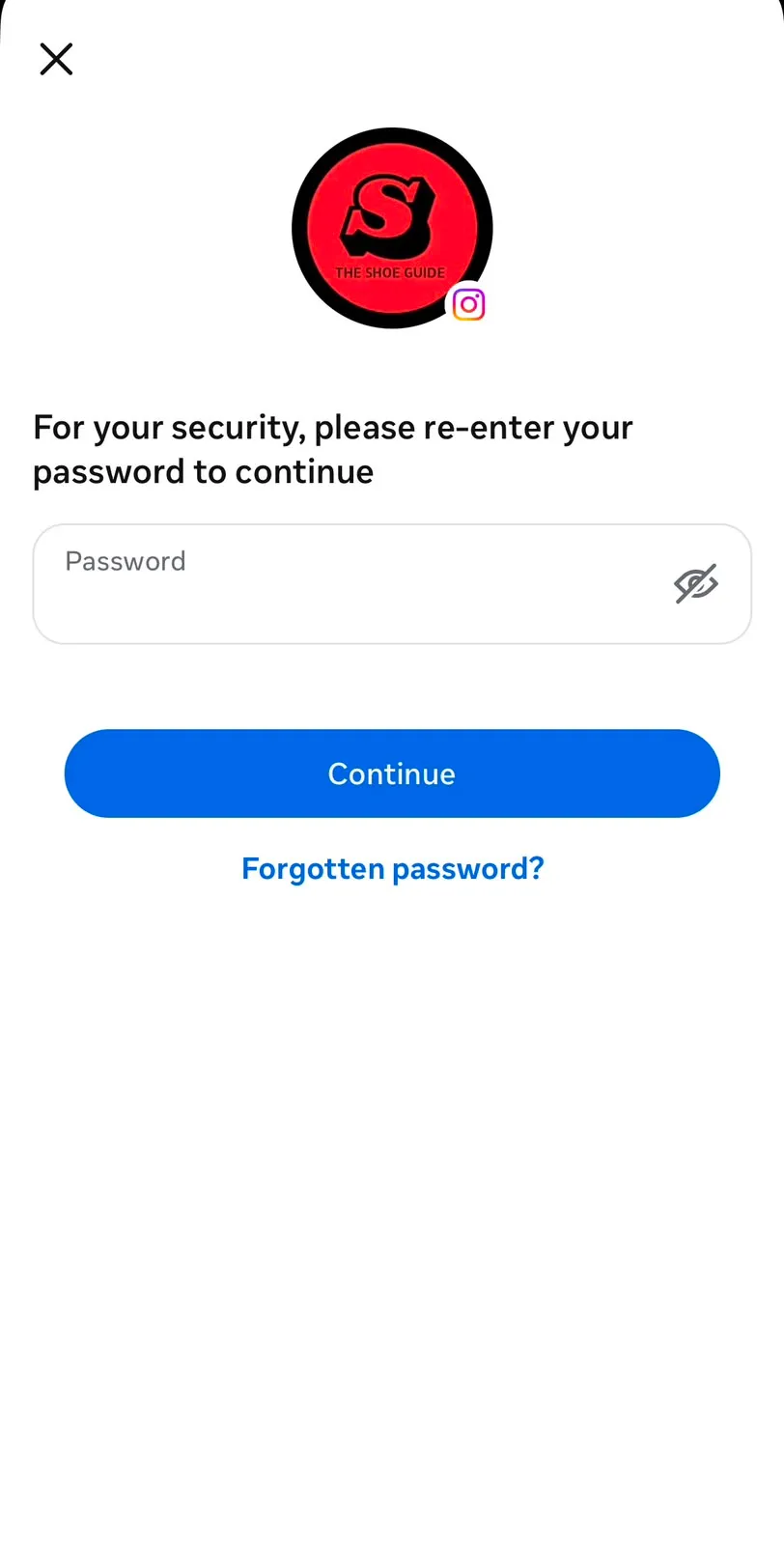
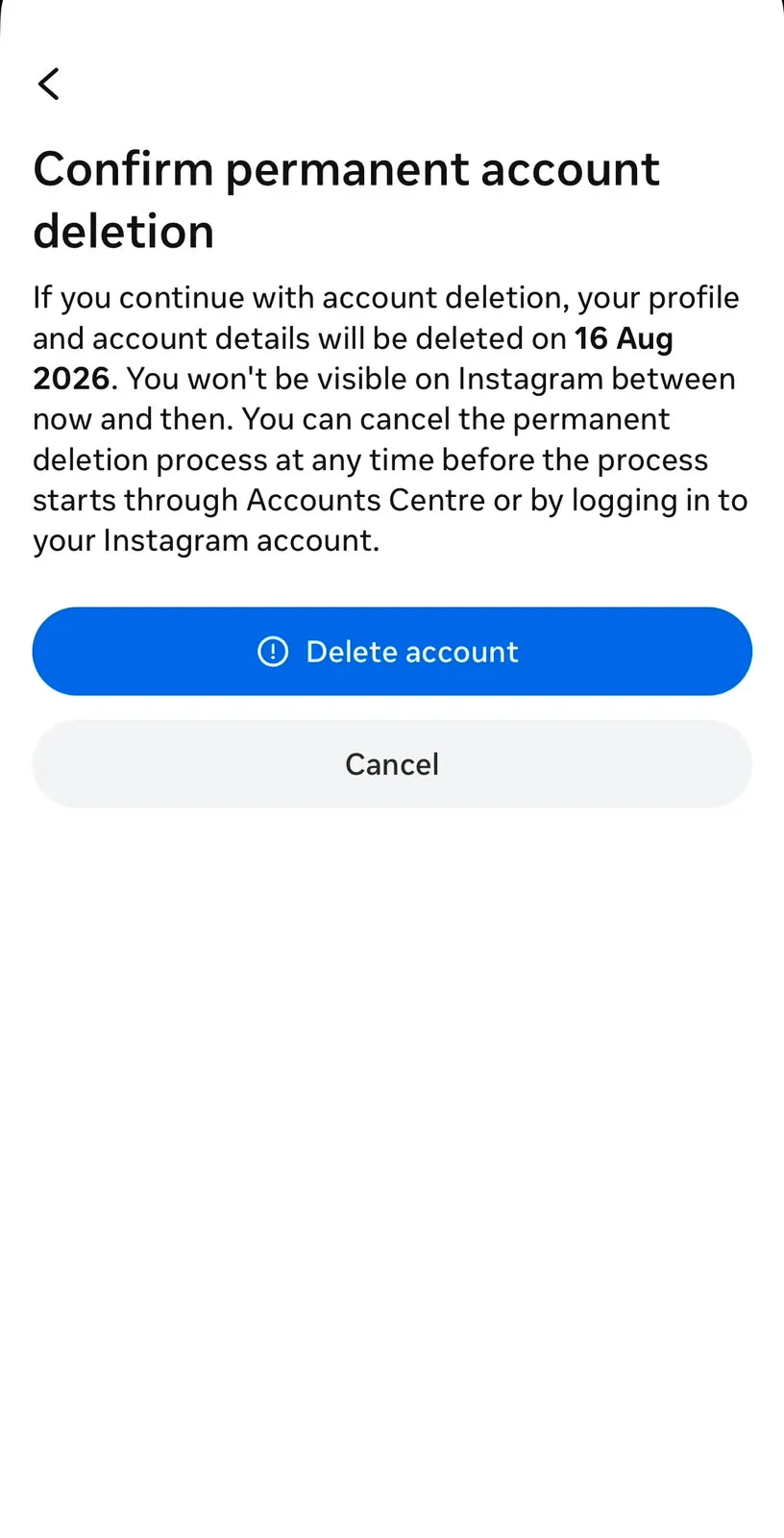
Searching for how to delete an Instagram account on iPhone?
- Open the Instagram app on your iPhone.
- Tap your Profile icon at the bottom right.
- Tap the Menu (☰) at the top right.
- Tap Settings and Activity.
- Tap Accounts Center.
- Tap Manage Accounts → Open Manage Accounts.
- Tap Deactivation or Deletion.
- Select Delete Account. Enter your password and confirm
Account scheduled for deletion! Permanent removal happens automatically after 30 days.
Real Example: Priya from Mumbai said, “I thought it would be complicated. But it took less than 2 minutes. Very easy steps.”
How to Delete Instagram Account on Tablet?
Want to know how to delete the Instagram account on a tablet? Works the same on iPad and Android tablets.
- Open the Instagram app on your tablet.
- Tap the Profile icon.
- Tap Menu (☰) → Settings and Activity.
- Tap Accounts Center → Manage Accounts → Open Manage Accounts.
- Tap Deactivation or Deletion → Delete Account.
- Enter your password → Confirm.
✅ Done. Works perfectly on all tablets: iPad, Samsung, Lenovo, and more.
How to Delete Instagram Account on PC / Windows / Computer?
Searching for how to delete an Instagram account on PC or computer?
- Open Chrome, Edge, or Firefox on your computer.
- Go to instagram.com
- Log in with your username and password.
- Click your Profile icon, then click Settings and Activity.
- Click Accounts Center.
- Click Manage Accounts → Open Manage Accounts.
- Click Deactivation or Deletion.
- Select Delete Account.
- Enter your password and confirm.
✅ Account scheduled for deletion! Permanently deleted after 30 days.
How to Delete Instagram Account on Mac?
Here is how to delete the Instagram account on Mac:
- Open Safari or Chrome on your Mac.
- Visit instagram.com
- Log in to your Instagram account.
- Click the Profile icon, then Settings and Activity.
- Go to Accounts Center → Manage Accounts → Open Manage Accounts.
- Click Deactivation or Deletion → Delete Account.
- Enter your password and confirm.
✅ Your Instagram account is now scheduled for permanent deletion after 30 days.
How to Delete Instagram Account Without a Password?
Forgot your password? Here is how to delete an Instagram account without a password, step by step.
Step 1:
Reset your password first: Go to instagram.com and tap Log In.
Tap Forgot Password? Enter your username, email, or phone number.
Instagram will send a reset link or code.
Tap the link or enter the code.
Create a new password.
Log in with the new password.
Step 2:
Now delete your account:
Follow the normal steps above for your device: Android, iPhone, or computer.
Real Example: Rohan forgot his Instagram password. He tapped “Forgot Password,” got a code on his phone number, reset it in 2 minutes, then deleted the account easily.
How to Delete Instagram Account Without Email?
Forgot the email you used to sign up on Instagram?
Follow these steps:
Step 1 – Try to find your email first:
Check Gmail, Yahoo, Outlook, or Hotmail, whichever you may have used.
Search for “Welcome to Instagram” in your inbox.
Check your phone’s email app for old emails.
Step 2 – If you still can’t find the email:
Go to Instagram Help Center → help.instagram.com
Use the “I Can’t Log In” or account recovery form.
Instagram will ask you to verify your identity (photo ID, phone number, etc.) Once verified, follow the normal delete steps.
How to Download Your Instagram Data Before Deleting?
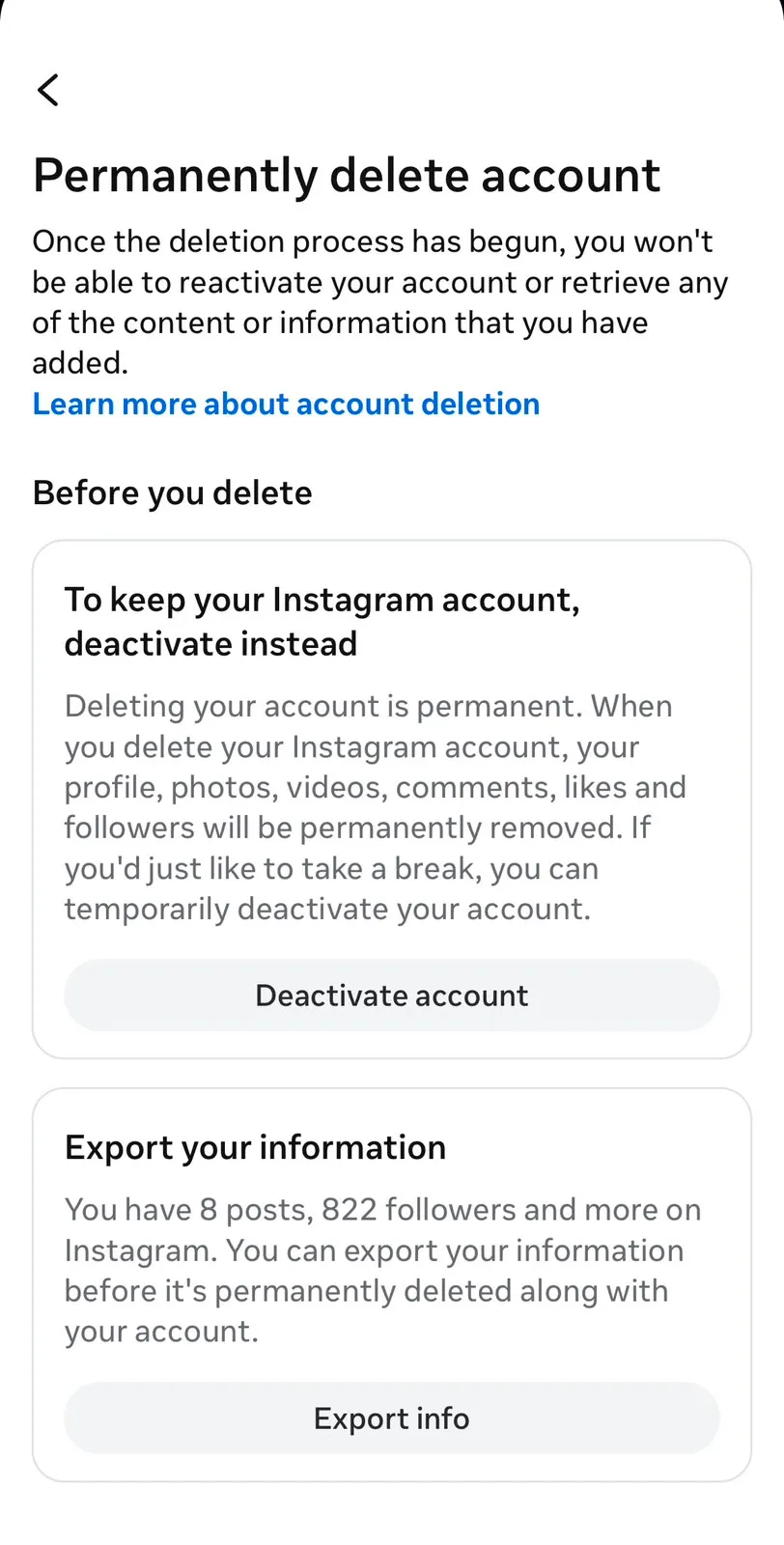
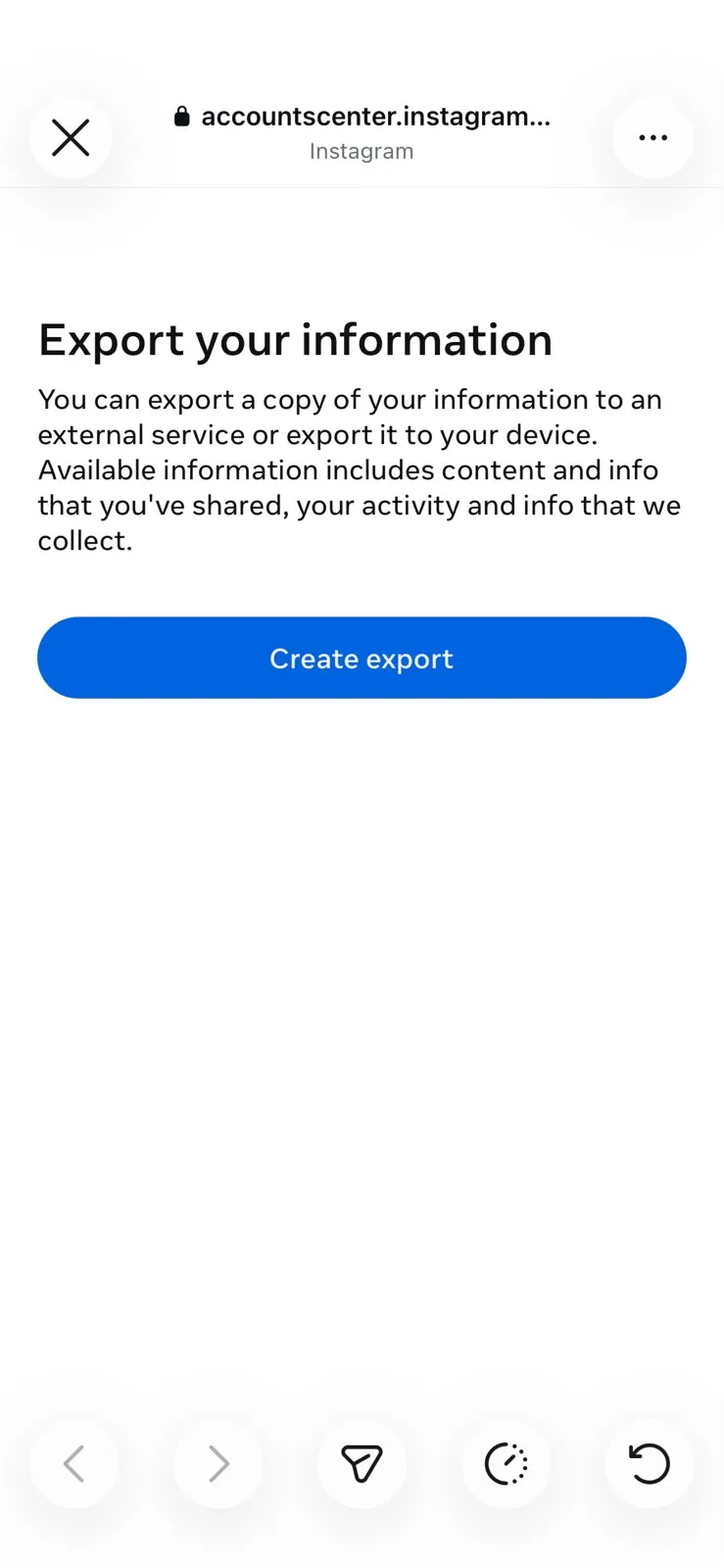
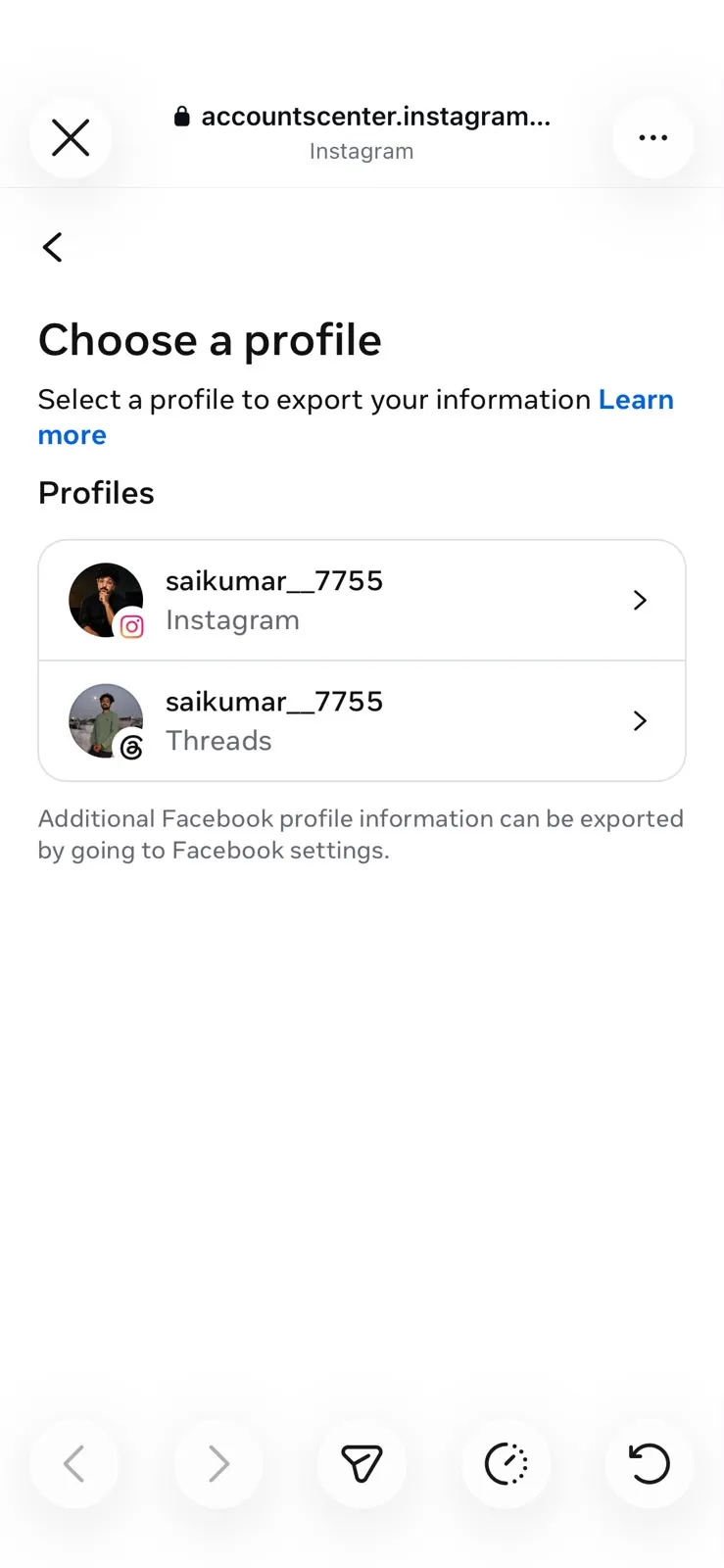
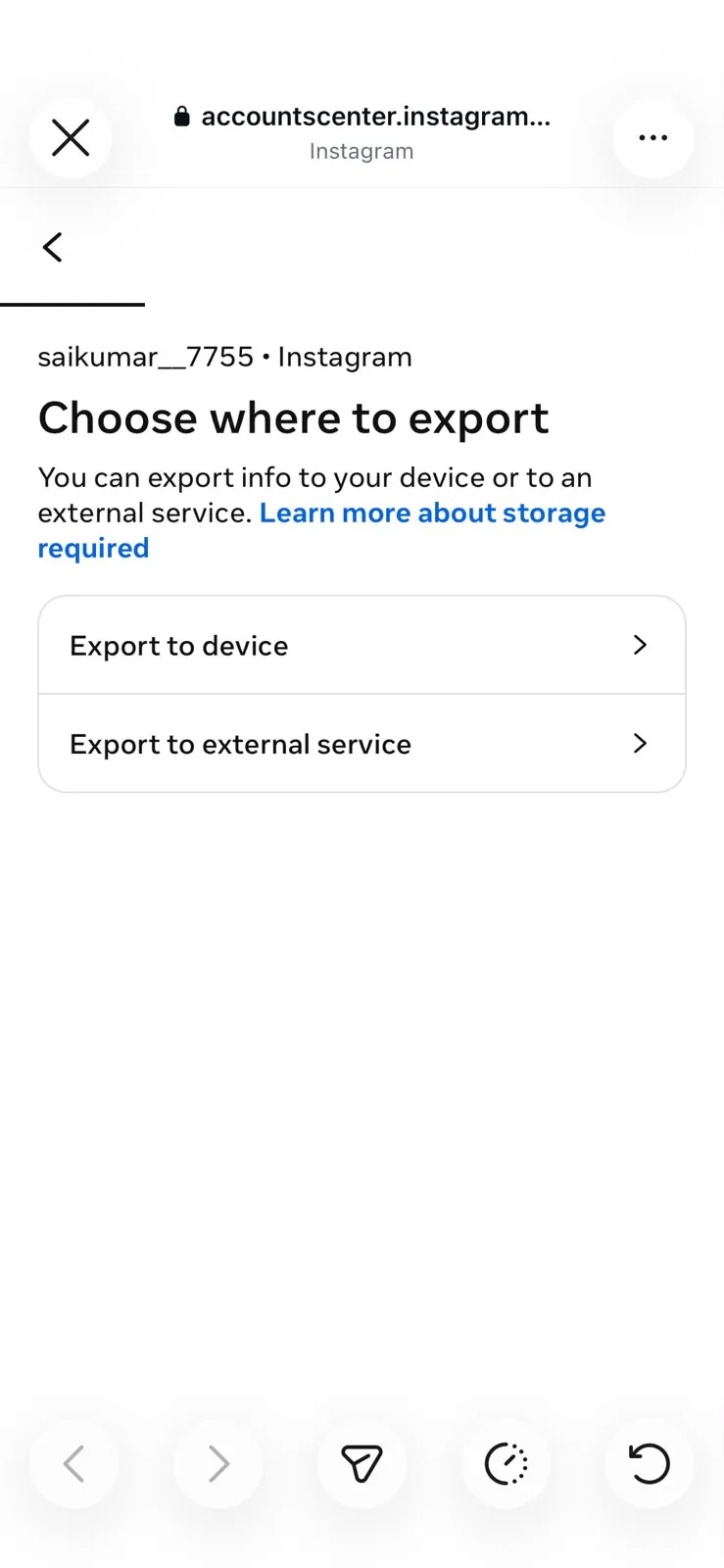
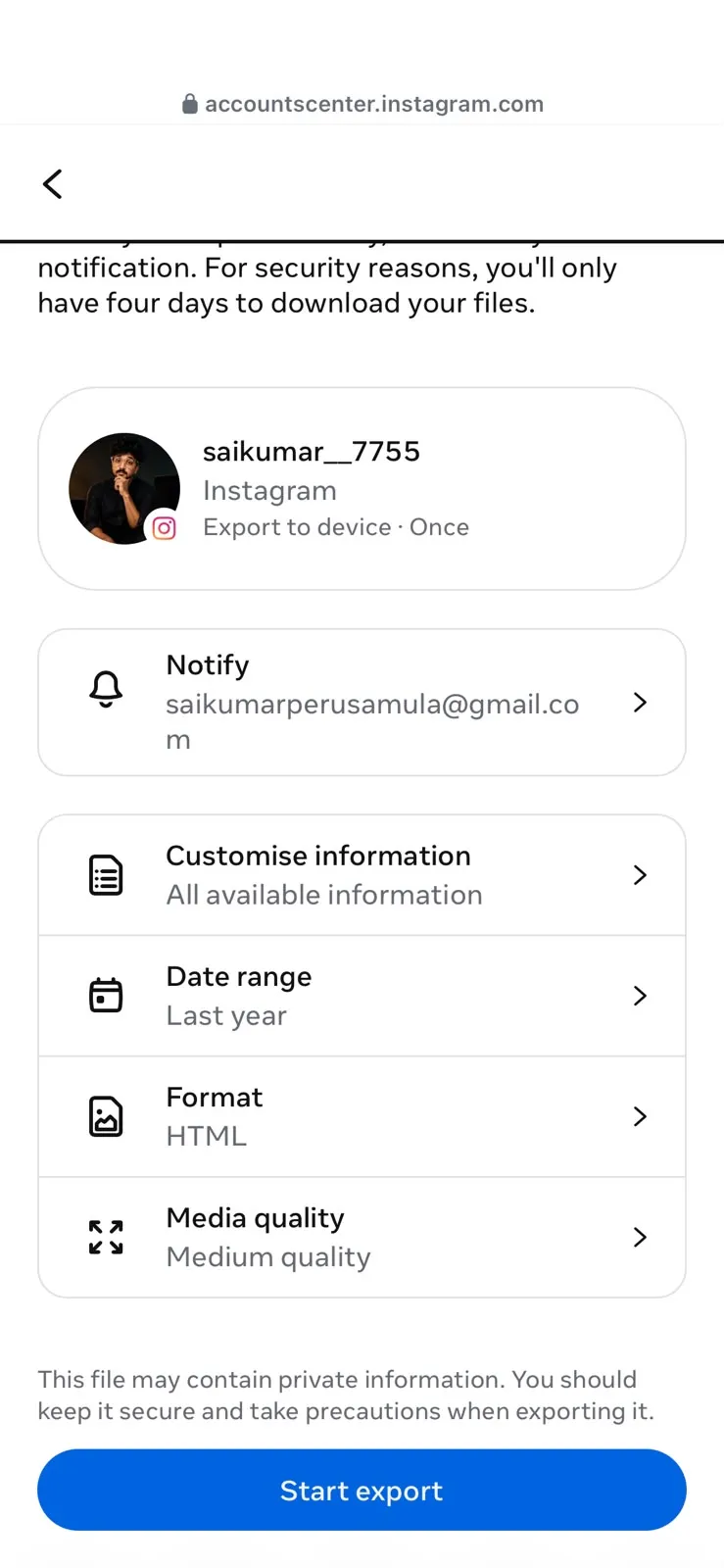
Before permanently deleting your account, consider downloading a copy of your Instagram data.
To download your data:
- Open Instagram.
- Go to Settings and Activity.
- Open Accounts Center.
- Tap Manage Accounts.
- Open Manage Accounts.
- Select Your Account.
- Select Deactivation or Deletion.
- Select Delete Account and Click Continue.
- Again, click Continue and select a reason for deletion.
- Click Continue and Again Click Continue.
- Click on Export your information and click Continue.
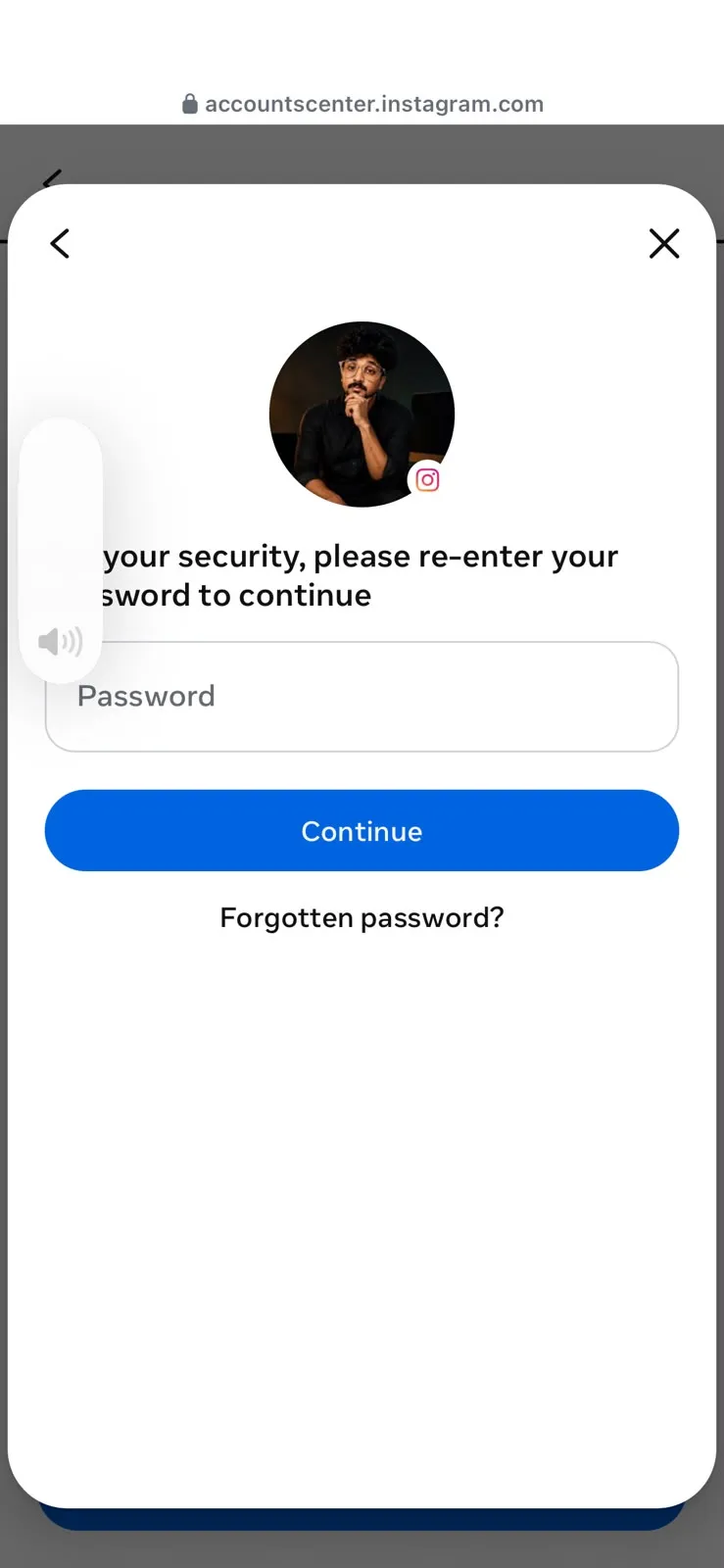
- Enter Your Password and Click Continue.
- Create export and Select Your Account.
- Choose where to export and start exporting.
- Then it will take some time to export, and then it is done.
Instagram will send a download link to your email when your data is ready.
The downloaded file may include:
- Photos
- Videos
- Stories
- Messages
- Comments
- Followers
- Profile Information
How to Delete Multiple Instagram Accounts?
Have more than one Instagram account?
Here is how to delete all of them one by one:
- Log in to your first Instagram account.
- Follow the delete steps above. Log out completely.
- Log in to your second account.
- Repeat the same steps.
- Do this for every account.
Unable to Delete Your Instagram Account?
| Problem | Solution |
|---|---|
| Forgot Password | Reset your password first using the "Forgot Password?" option, then try deletion again. |
| Lost Email Access | Recover your account using your phone number, or use the Instagram Help Center recovery form. |
| Delete Option Missing | Update the Instagram app to the latest version — older versions sometimes hide the option. |
| Wrong Account Selected | Double-check you've selected the correct account in Accounts Center before confirming deletion. |
| Accounts Center Not Showing | Log out completely and log back in after updating the app to refresh the menu. |
What Happens After You Delete Your Instagram Account?
Timeline: What Happens Immediately after confirming deletion: Your profile disappears.
No one can search or see it. Day 1 to Day 30 The account is pending deletion, but data still exists on Instagram’s servers If you log in before Day 30 Your account is automatically restored and deletion is cancelled After Day 30 Instagram permanently deletes your account and all data After permanent deletion Photos, reels, DMs, followers, likes, all gone forever Linked Threads account Not deleted automatically, must be deleted separately Same email for new account You can usually use the same email to create a new account later.
How to Cancel Your Instagram Deletion Request?
If you change your mind after requesting account deletion, you can cancel it within 30 days.
Simply:
- Open Instagram.
- Log in to your account.
- Tap Keep Account when prompted.
Your account will be restored immediately.
After 30 days, permanent deletion cannot be cancelled.
Common Mistakes to Avoid
Many users accidentally lose their accounts because of these mistakes:
- Logging in again before the 30-day period ends.
- Confusing deactivation with permanent deletion.
- Forgetting to download important photos and videos.
- Assuming deleting the app deletes the account.
- Thinking Threads will also be deleted automatically.
Avoiding these mistakes can save you time and prevent accidental data
Frequently Asked Questions:
1. Can I delete my Instagram account without a phone number?
Yes. A phone number is not required. You only need your password to delete your account.
2. Can I delete my Instagram account from a browser without the app?
Yes. Go to instagram.com in any browser, Chrome, Safari, Firefox, Edge, log in, and follow the same steps. The app is not needed.
3. What if I forgot both my password and email?
Go to the Instagram Help Center at help.instagram.com and submit a recovery request. Instagram will verify your identity and help you get access before deletion.
4. Can I use the same email to create a new Instagram account after deleting it?
Usually, yes, once the old account is fully and permanently deleted after 30 days.
5. Will Instagram delete my account automatically if I am inactive?
Instagram does not automatically delete accounts just for inactivity. For guaranteed permanent deletion, you should do it yourself by following the steps in this guide.
6. Can I delete my Instagram account on slow internet?
Yes. The deletion process uses very little data. It works fine even on 2G or slow mobile internet.
7. Is my personal data removed when I delete my Instagram account?
Yes. Instagram removes your personal data after permanent deletion. However, some data may remain in backup systems for up to 90 days before being fully wiped.
Still Need Help?
If you’re facing issues while deleting your Instagram account, such as password recovery problems, login errors, or missing options, leave a comment below. We’ll help you find the correct solution.
Related Guides
You may also find these guides helpful:
Conclusion:
You now know exactly how to delete your Instagram account permanently on every device: Android, iPhone, tablet, PC, and Mac.
3 things to always remember:
Deactivating is not deleting. Instagram deletes everything after 30 days
Do NOT log in for 30 days, or your account will be restored automatically.
Delete the Instagram app from your phone after starting the deletion process.
Arjun from Hyderabad deleted it during exams and said, “My focus improved in just one week. My anxiety went down completely.” Deleting Instagram is not giving up. It is choosing your peace, your time, and your focus over endless scrolling. Take the step today. Your future self will thank you.
Before You Leave
Before permanently deleting your Instagram account, make sure you have completed this checklist:
✅ Download your Instagram data.
✅ Inform important contacts if you communicate through Instagram Direct Messages.
✅ Delete your Threads account separately if you no longer need it.
✅ Do not log in again for 30 days if you want your account to be permanently removed.
2 thoughts on “How to Delete Instagram Account Permanently (2026) – Easy Guide”
Comments are closed.