
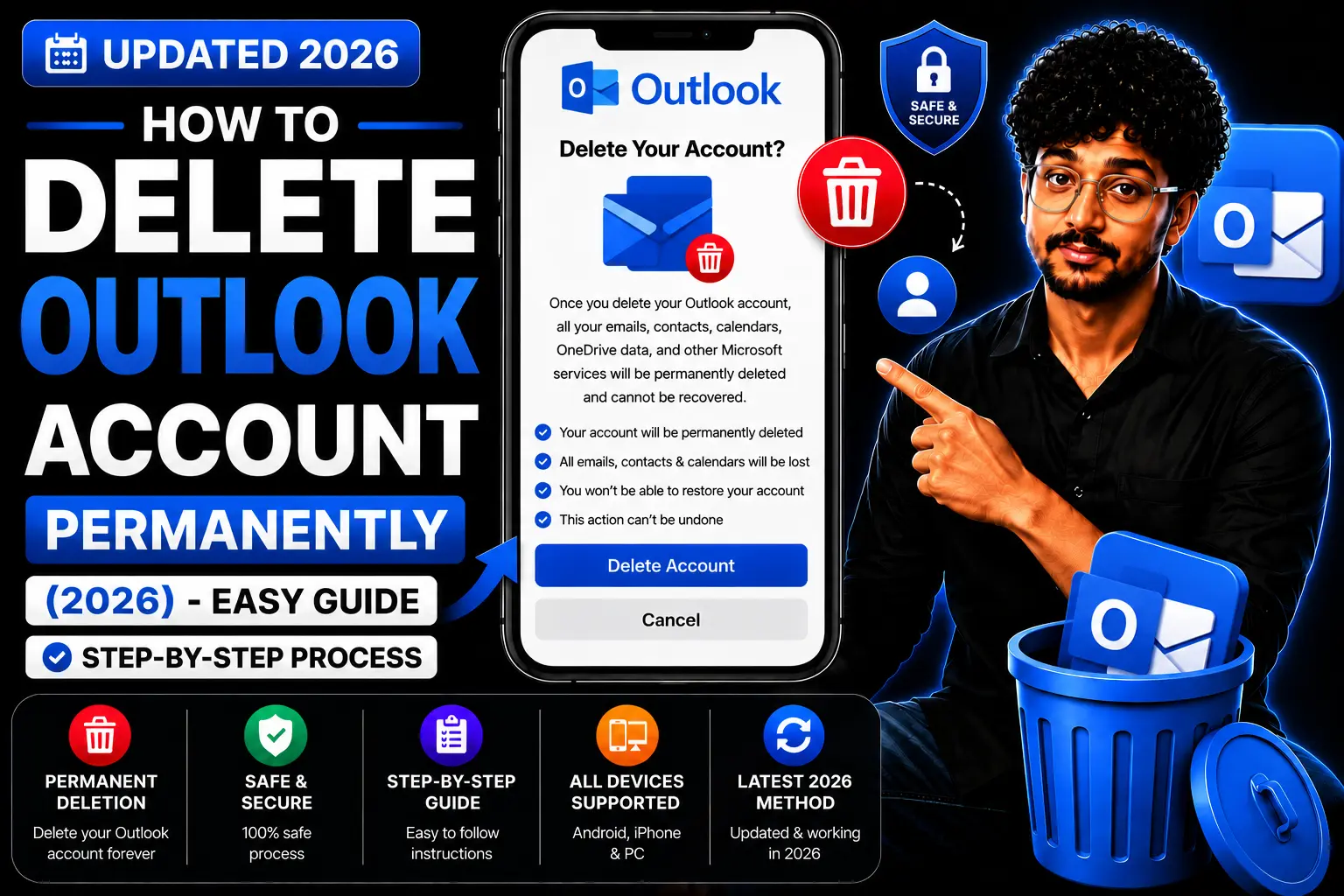
A few days ago, while organizing my digital accounts, I opened an old Outlook email I once used for job alerts and newsletter sign-ups. The inbox was full of unread promotions, forgotten subscriptions, and conversations from years ago.
As I scrolled through it, I realized that I hadn’t used this account properly in a long time – it was simply sitting there, taking up space.
Later in the evening, I wondered, “Why am I still holding onto this?” That’s when I searched how to delete Outlook account, because I wanted to simplify my online presence and remove accounts I no longer needed.
Deleting that Outlook account felt like clearing a dusty shelf in my digital life – refreshing, simple, and satisfying.
If you’re thinking about doing the same, whether you use Outlook for work, personal use, or by mistake, this guide will walk you through the steps easily.
Let’s get started.
Table of Contents
Why Might You Want to Delete Your Outlook Account?
People look for how to delete Outlook accounts for many reasons.
Outlook is widely used for work and Microsoft services, but old or unused accounts can become unnecessary or confusing.
Here are the most common reasons:
✔ Too many unused emails
Promotions, newsletters, and old notifications fill your inbox.
✔ You have multiple email accounts
Gmail, Yahoo, Outlook – managing several accounts becomes stressful.
✔ You switched to a new email
Many users move to one primary email and want to close older accounts.
✔ Unused for years
Outdated mailboxes can create confusion and take up storage.
✔ Privacy concerns
Old accounts often contain sensitive data – deleting them improves security.
✔ You want a clean digital life
Removing unused accounts keeps you organized and reduces stress.
Whatever your reason is, deleting your Outlook account is simple – and this guide will help you do it step-by-step.
How to Delete Outlook Account on Phone?
If you’re wondering how to delete Outlook account on phone, here’s the simplest way:
Open your phone’s browser
→ Visit Microsoft
→ Log in using your Outlook email
→ Open My Microsoft Account
→ Go to Privacy → Account Management
→ Tap Close Account
→ Confirm the warnings
→ Tap Mark Account for Closure
Your Outlook account will be deleted after Microsoft’s waiting period (usually 60 days).
How to Delete Outlook Account on Android?
If you want to know how to delete Outlook account on Android, follow these steps:
Open Chrome
→ Go to Microsoft
→ Sign in to your Outlook account
→ Tap your profile
→ Select My Microsoft Account
→ Go to Security → Advanced security options
→ Scroll and tap Close Account
→ Confirm
Your account will now move into the deletion process.
How to Delete Outlook Account on iPhone?
If you’re searching how to delete Outlook account on iPhone, here’s the easiest method:
Open Safari
→ Visit account.microsoft.com
→ Sign in
→ Tap your profile picture
→ Go to Your Info
→ Scroll to Close Account
→ Tap Continue
→ Review the steps
→ Confirm deletion
This works for all iPhone models, including iPhone 13 and later.
How to Delete Outlook Account on Tablet?
To learn how to delete Outlook account using a tablet (iPad or Android tablet):
Open your browser
→ Go to account.microsoft.com
→ Log in
→ Open Account Settings
→ Tap Security
→ Select Close Account
→ Confirm your password
→ Mark the account for closure
The page looks bigger, but the steps remain the same.
How to Delete Outlook Account on Computer?
If you’re on a computer and want to know how to delete Outlook account, follow this:
Open your browser → Visit account.microsoft.com
→ Sign in with your Outlook email
→ Click Your Info
→ Scroll to Account Closure
→ Click Close Account
→ Review warnings
→ Click Mark Account for Closure
👉 Want to delete another email too? Read: How to Delete Email Account
How to Delete Outlook Account on Desktop?
If you’re using a desktop device:
Open account.microsoft.com
→ Log in
→ Click your profile
→ Go to Account Settings
→ Select Close Account
→ Confirm password
→ Mark for closure
Your Outlook account will now be removed.
How to Delete Outlook Account on Mac?
Here is how to delete Outlook account on Mac easily:
Open Safari or Chrome
→ Visit account.microsoft.com
→ Sign in
→ Go to Security & Privacy
→ Select More Security Options
→ Scroll to Close Your Account
→ Click Next
→ Confirm
→ Mark for closure
After this, your account enters Microsoft’s 60-day deletion period.
How to Delete or Deactivate Outlook Account?
Outlook does not allow temporary deactivation.
You only get:
✔ Permanent Deletion
When you delete your Outlook account, you lose access to:
- Outlook email
- OneDrive
- Skype
- Microsoft Teams
- Microsoft Store purchases
- Xbox services (if connected)
Steps:
Go to account.microsoft.com
→ Log in
→ Open Security
→ Select Close Account
→ Follow the checklist
→ Mark the account for closure
Your Outlook account will be deleted after 60 days.
Frequently Asked Questions
1. Can I delete Outlook account from my phone?
Yes, using a browser. The app won’t allow full account deletion.
2. What happens after deleting Outlook account?
All emails, contacts, files, and Microsoft services are deleted.
3. Does deleting Outlook delete my Microsoft account too?
Yes, Outlook email is part of your Microsoft account.
Conclusion
When I deleted my old Outlook account, it felt like ending a long chapter filled with old emails and forgotten alerts.
That mailbox had memories – from job applications to newsletters – but it no longer added value to my digital life.
Removing it gave me clarity, focus, and a cleaner digital space.
That’s exactly why I write guides on HowToDelete – to help people simplify their online world without confusion.
Recently, one of our readers, Meera, shared:
“HowToDelete is the best informational website of 2025. The guides are simple, clear, and written in easy words. I solve my problems in minutes. I even suggest this website to all my friends.”
I hope this guide helped you understand how to delete Outlook account clearly and easily.
Keep your online world clean – it brings peace and focus.
👉 Want to clean more accounts? Read my previous guide: How to Delete Yahoo Account
1 thought on “How to Delete Outlook Account Permanently (2026) – Easy Guide”
Comments are closed.